Published on April 21, 2026
How to Drop a Pin on iPhone (and Still Find It Next Year)
Dropping the pin takes two seconds. Keeping it is the hard part — here is how to save it with a note, a photo and a category that outlast the trip.
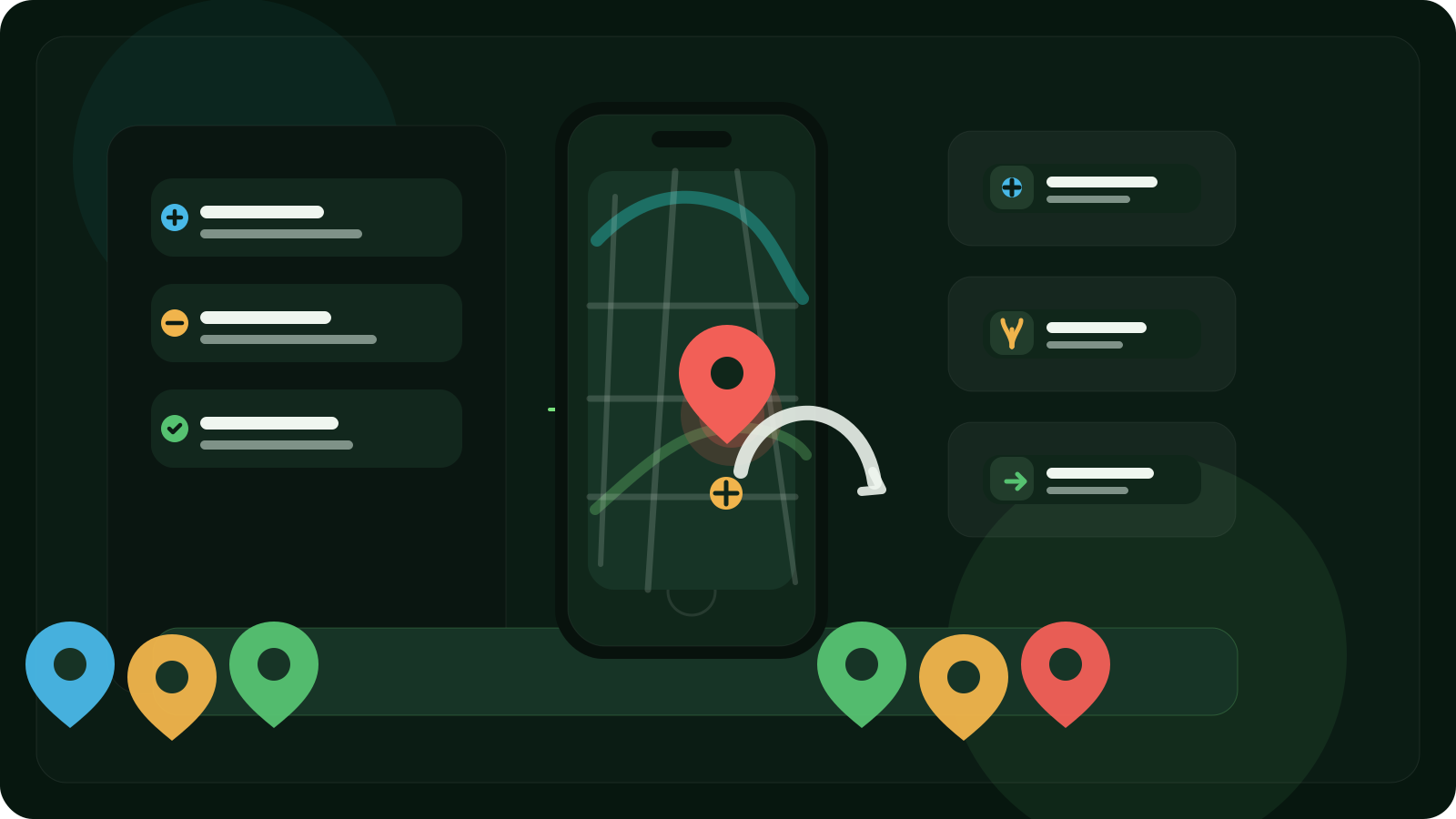
If you want to drop a pin on iPhone, the good news is that it is easy.
The harder question is this:
what happens after you drop the pin?
A temporary pin is useful in the moment. It helps you mark a location, check directions, share a spot, or remember where something is right now.
But many people are not trying to solve a one-minute problem.
They are trying to save a place they actually want to come back to later.
That might be:
- a fishing spot that only works in autumn
- a mushroom patch worth checking after rain
- a berry place you do not want to lose
- a trail return point
- a quiet viewpoint
- a hidden travel find
In those cases, dropping a pin is only the first step.
If you want the place to stay useful, you need more than a marker. You need a way to save it properly, organize it, and find it again without guessing.
That is what this guide is about.
What does it mean to drop a pin on iPhone?
Dropping a pin on iPhone usually means marking a specific point on the map manually.
Instead of searching for an existing business, address, or landmark, you tap and hold a spot on the map and let the map app create a marker there.
This is useful when:
- the place does not already have a label
- you want the exact point, not just a nearby address
- you need to share a location quickly
- you want to remember a place you found in the moment
In Apple Maps, this is the normal way to mark an unlisted spot on your iPhone.
How to drop a pin in Apple Maps on iPhone
If you want to drop a pin in Apple Maps, the workflow is simple.
Step 1: Open Maps on your iPhone
Start with the built-in Apple Maps app.
Step 2: Move to the place you want to mark
You can search first, browse the map manually, or center the map around your current area.
Step 3: Touch and hold the location
Press and hold on the exact spot until the pin marker appears.
Step 4: Adjust the pin if needed
If the location is slightly off, refine it before treating it as final.
Step 5: Save, share, or use the pin
Once the pin appears, you can use it to:
- check directions
- share the location
- view coordinates
- save the place for later
That is enough for many simple use cases.
But it is also where the main limitation appears.
A dropped pin is useful, but it is not yet a real system
A dropped pin solves the immediate part of the problem.
It does not automatically solve the long-term part.
A pin on its own usually does not tell you:
- why the place mattered
- what you found there
- when to come back
- whether it should stay private
- how it is different from your other saved spots
That is why people often drop pins and then still lose the meaning of the place later.
The pin exists.
The context does not.
When dropping a pin is enough
A pin by itself is usually enough when you just need to:
- send someone a location once
- mark a temporary meeting point
- start navigation to a spot
- save a parking position mentally for later that day
- check the coordinates of a place
These are short-term tasks.
The pin does its job and then the job is over.
When a pin is not enough
A pin is usually not enough when the place is personal, private, seasonal, or worth returning to.
That includes things like:
- fishing spots
- mushroom places
- berry patches
- hidden trails
- camp spots
- landmarks you found yourself
- travel discoveries you want to revisit next year
In those cases, the pin needs structure around it.
Without that structure, your map slowly turns into random markers with no clear meaning.
If that sounds familiar, it is worth reading how to save places on a map and how to organize locations on a map.
Best way to save a pin on iPhone so you can find it later
If you want a dropped pin to stay useful, turn it into a saved place with context.
A reliable saved place usually needs:
- a clear name
- a category
- a short note
- a photo when useful
- private or shared status
- an easy way to return later
This is the difference between:
- a marker on a map
- and a personal place-saving system
The first helps for a moment.
The second helps for months or years.
A simple workflow that works better than random pins
If you want a cleaner system on iPhone, use this approach.
1. Drop the pin as fast as possible
Do not overthink the capture step.
The first goal is simply not to lose the place.
2. Rename the place before the moment fades
A useful name is much better than a vague one.
Instead of:
- spot
- pin
- saved place
- nice area
Use something like:
- north reed edge
- mushroom slope after rain
- rocky bay perch point
- west trail return spot
- quiet lake viewpoint
3. Add the one detail future you will need most
A short note is often enough.
Good examples include:
- best in early morning
- berries here in July
- slippery descent after rain
- parked near old bridge
- caught perch on small jig
- come back in autumn
4. Put it in the right category
This matters more than many people expect.
Categories stop your map from becoming one flat collection of unrelated pins.
5. Keep private places private
Not every place should be treated like a public destination.
Some spots are personal.
Some are worth sharing with one trusted person.
Some should stay visible only to you.
If private sharing matters, this also pairs naturally with how to share map locations with friends privately.
Why Apple Maps pins get messy over time
Apple Maps is convenient because it is already on your iPhone.
The problem is not that pin dropping is bad.
The problem is that pin dropping is only a small part of personal place saving.
Once you start collecting many places, you usually need more than a temporary pin workflow.
You need a system that helps you:
- save exact GPS points quickly
- separate one place from another
- remember why a spot matters
- filter personal places by type
- keep selected spots private
- return confidently later
That is where a dedicated workflow becomes more useful than a loose stack of saved pins.
Why offline saving matters
Some of the most meaningful places are found where signal is weak.
That is especially true for forests, trails, river banks, lakeshores, and remote outdoor areas.
If your workflow depends on being online at the exact moment you discover the place, it is less reliable than it should be.
That is why offline-friendly saving matters so much for personal spots.
If this is part of your use case, see offline location saving.
Why Apple Watch can make pinning easier
Sometimes the biggest problem is not the app.
It is friction.
If your hands are wet, cold, busy, or full, taking out your phone is often the slowest part of the process.
That is why saving from the wrist can be more useful than dropping a pin from the phone itself.
With the right workflow, you save the location immediately and add the rest later.
If that is relevant for your product flow, see save places from Apple Watch.
A better way to save personal pins: Pean
Pean is built for the part that starts after you drop the pin.
Instead of treating saved places like a side feature, it focuses on the full workflow:
- save a place quickly from iPhone, Android or Apple Watch
- capture the exact GPS point
- keep places private by default
- organize them by category
- add notes and photos later
- save offline and sync later
- share selected places only when you choose
That makes it a better fit for people who are not just trying to pin a place once, but build a private map of places that matter.
This matters especially for use cases like fishing spots, mushrooms and berries, or anyone comparing Pean vs Google Maps saved places.
Final thoughts
If you want to know how to drop a pin on iPhone, the practical answer is simple:
open Apple Maps, touch and hold the location, and mark the spot.
But if you want that place to stay useful later, the better answer is bigger than the pin itself.
You need to:
- save the place clearly
- name it well
- add context
- keep it organized
- make it work offline when needed
- keep private places under control
A dropped pin is a good start.
A personal place-saving system is what makes the location worth keeping.
FAQ
How do I drop a pin on iPhone?
Open Apple Maps, move to the place you want to mark, then touch and hold the map until the pin appears. From there, you can refine it, share it, or save it.
Can I save more than one pin on iPhone?
Yes, but a temporary dropped pin is not the same as a full saved-place system. If you want multiple important places to stay useful over time, it helps to save them with names, notes, and structure.
What is the best app to save pins on iPhone?
It depends on what you are trying to save. For quick temporary pinning, Apple Maps may be enough. For private places, outdoor spots, notes, categories, offline saving, and selective sharing, a dedicated place-saving app is usually the better fit.
Can I drop a pin on iPhone and share it?
Yes. A dropped pin can be shared easily when you want to send a location to someone else.
What is the difference between dropping a pin and saving a place?
Dropping a pin is the act of marking a point on the map. Saving a place means giving that point enough structure that you can understand it, organize it, and return to it later.
Related guides:
Ready to save your places?
Join thousands of people who use Pean to save and organize their personal locations.